How to Fix: Chromecontinue Where You Left off Feature Not Working
There are many reasons why the Google Chrome browser may need to close or relaunch. This can happen during updates or after crashes. When it does, the Chrome Continue where you left off feature is designed to save and reopen your previously opened tabs.
Except when it doesn’t.
Below, we’ll walk through troubleshooting steps for when this feature isn’t working and explain how to get your system back on track.
Common Causes of the Chrome Continue Feature Not Working
There are several reasons why Google Chrome’s restore tabs and Continue where left functionality may fail, including:
- Chrome wasn’t closed properly or crashed
- Issues with your session files, such as corruption
- You’re using unsafe or buggy extensions
- Background apps are causing problems
- You have too many open Chrome tabs or windows
- Your computer isn’t running optimally, such as having low RAM or disk space
- Syncing problems with your Google Chrome accounts or profiles
The causes of the Chrome Continue where you left off feature not working can extend beyond this list. Fortunately, the solutions below address a wide range of common problems.
Simple Solution to Try First for Chrome Continue Where Left Off Issues
For Chrome Continue where left issues, start with the quickest fix: close the browser completely. Make sure all windows and Chrome tabs are closed, then reopen the browser and check whether the feature works again.
If that doesn’t help, try restarting your computer. Yes, it’s a simple step, but it often clears minor system glitches that interfere with normal browser behavior.
A Quick Fix for Chrome Continue Issues That You Might Be Overlooking
Before diving into deeper troubleshooting, it’s worth knowing that the Chrome Continue where you left off feature is primarily controlled by local settings and session files stored on your device — not by your network connection. If the feature isn’t working, the most productive first steps are to check your On Startup settings, look for recent crashes, review your installed extensions, inspect your Chrome profile, and make sure Chrome is fully up to date.
These local factors are responsible for the vast majority of session restore failures.
A VPN such as NordVPN can be a useful tool for protecting your privacy and keeping your browsing secure, but it is not a direct fix for tab or session restore problems. If you use a VPN and are experiencing issues, try disabling it temporarily to rule it out as a variable, then focus your troubleshooting on the Chrome-specific steps below.
Editor's Pick October 2026

Quick and Easy Troubleshooting Tips That Actually Work
Losing an important tab can be frustrating, but it does not have to mean the end of that project you have worked so hard on, or the research you were right in the middle of. Here is a list of tips to try when your previously open tabs aren’t automatically recovered by Chrome.
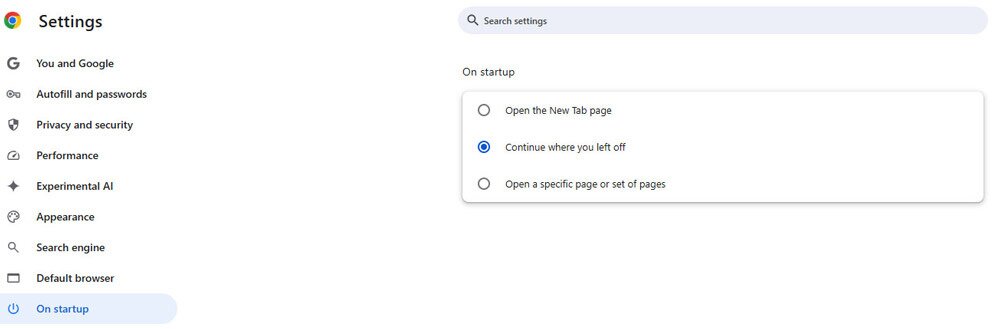
1. Chrome Continue: Activate Continue Where You Left Off
One of the first things to check when troubleshooting the Chrome Continue where you left off feature, is whether the feature is actually enabled. Here’s what to do:
- Open Chrome.
- Click the More options button and select Settings from the menu.
- Scroll down to the On Startup section.
- Select the Continue where you left off option.
2. Update the Chrome Browser
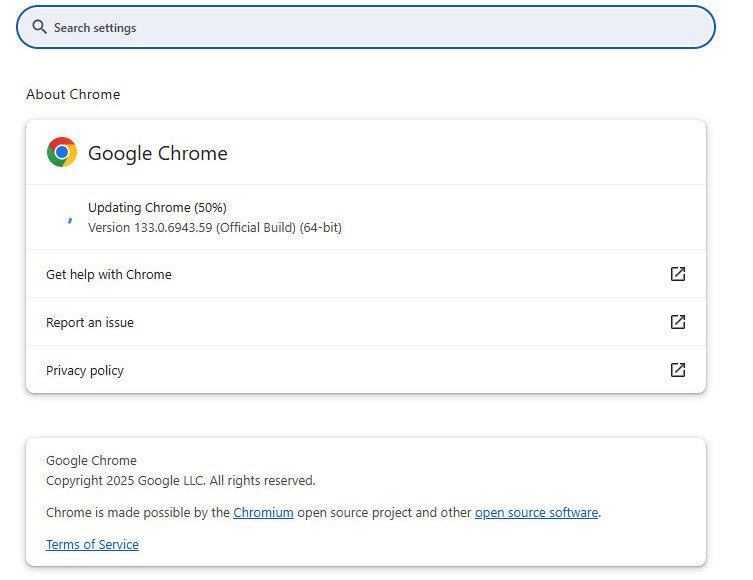
If there’s an available Chrome update, this may solve your tab issues, especially if there were bugs or glitches with previous versions. Here are the steps:
- Click the three vertical dots in the top-right corner to open the Chrome menu.
- Select Help → About Google Chrome.
- The next screen will automatically start updating your Chrome version if it is outdated.
- When the update is finished, restart the browser.
The above steps may solve your problems with the Chrome Continue where you left off feature. But if not, try this:
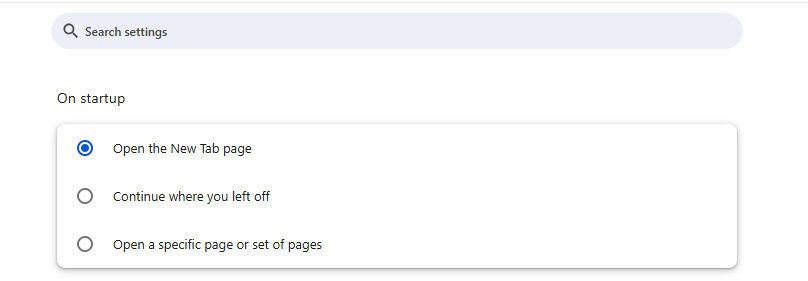
3. Disable and Re-enable Chrome Continue Where You Left Off
Toggling this feature off and on again can fix any issues that may have prevented it from functioning properly in the past. Here’s how to do it:
- Click the three vertical dots in the top-right corner to open the Chrome menu.
- Select Settings.
- On the left of the screen, select On Startup.
- Click the bubble to Open the New Tab page.
- Close Chrome.
- Reopen Chrome and repeat the steps until you return to the On Startup menu.
- Select Continue where you left off.
- Restart Chrome and test again to see if the issue is resolved.
4. Pay Attention to How You Close Chrome
If you manually close individual tabs before exiting Chrome, only the most recent tab may reopen. Exiting the browser normally, rather than closing tabs one by one, helps ensure all your Chrome tabs are restored. This is one of the most overlooked reasons why Chrome Continue where you left off stops working as expected.
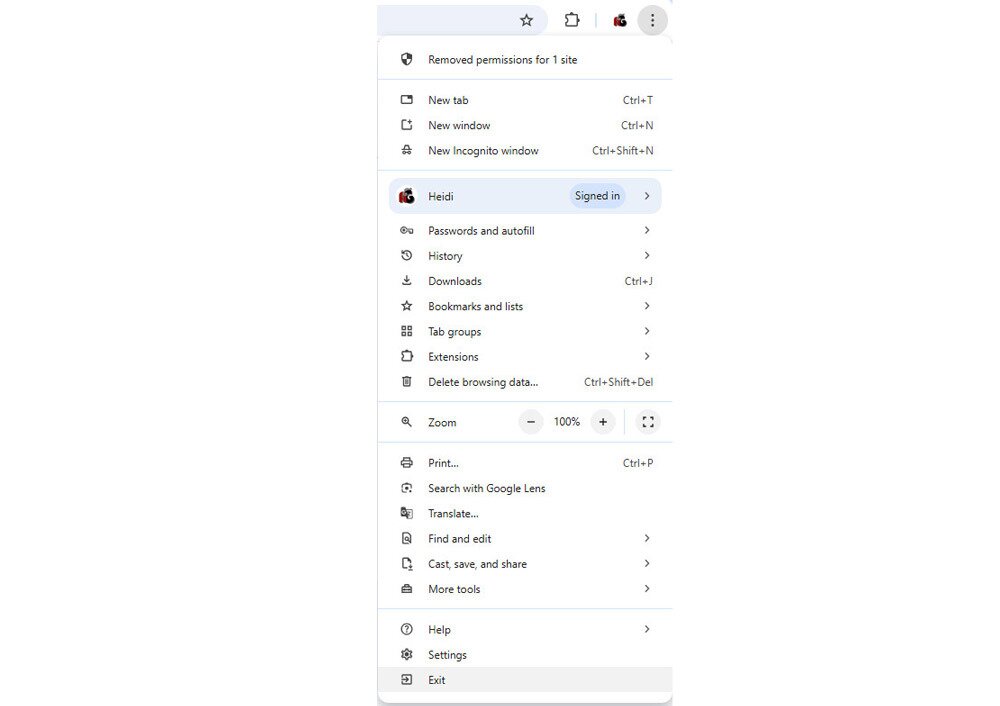
5. Disable Continue Running Background Apps
Sometimes disabling this feature can help with being able to restore tabs. Here are the steps:
- Access the Chrome menu from the three vertical dots.
- Go to Settings.
- Go to System (on the left side of your screen).
- Toggle off the Continue running background apps when Google Chrome is closed option.
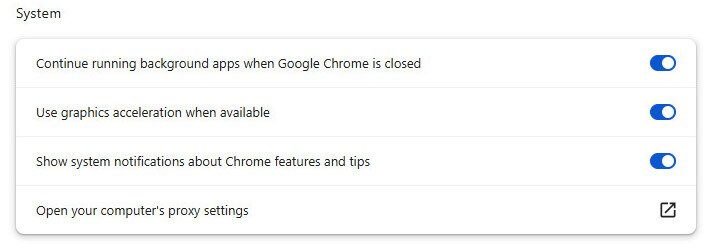
- Restart the browser and see if this resolves the problem.
6. Check/Disable Extensions
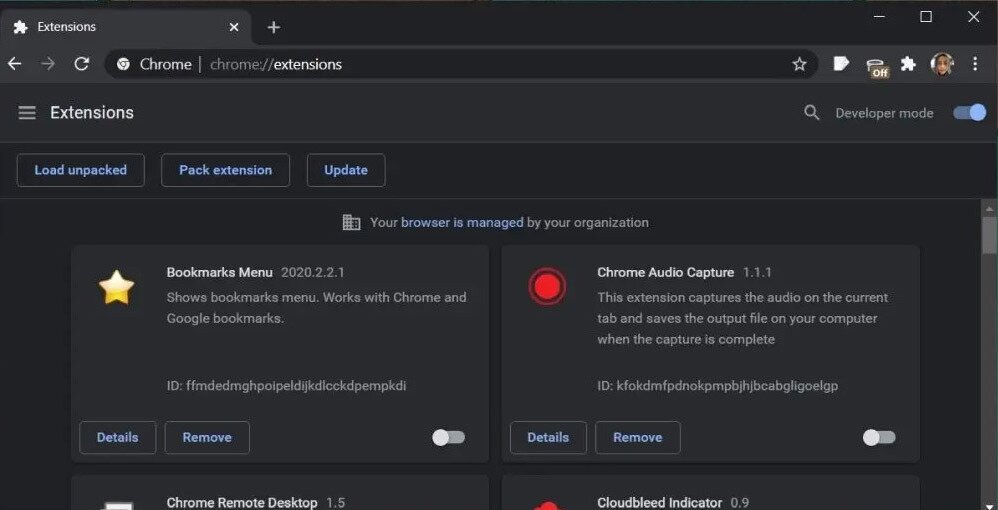
Another way to fix Chrome Continue where you left off not working, is to check the extensions you have running. These can sometimes interfere with Chrome’s built-in functionalities, and may be the cause of your issue. Disable the extensions and then check if your tabs are successfully restored.
- Open Chrome.
- Click More tools → Extensions
- Turn the switch next to each extension off.
- Restart Chrome and test the restore tabs feature.
7. Create New Chrome Profile
Another possibility is that your Chrome profile is corrupted. Though this is rare, it can cause problems with Chrome’s native features, including Chrome Continue where you left off. The easiest fix is to create a new profile:
- Open Chrome.
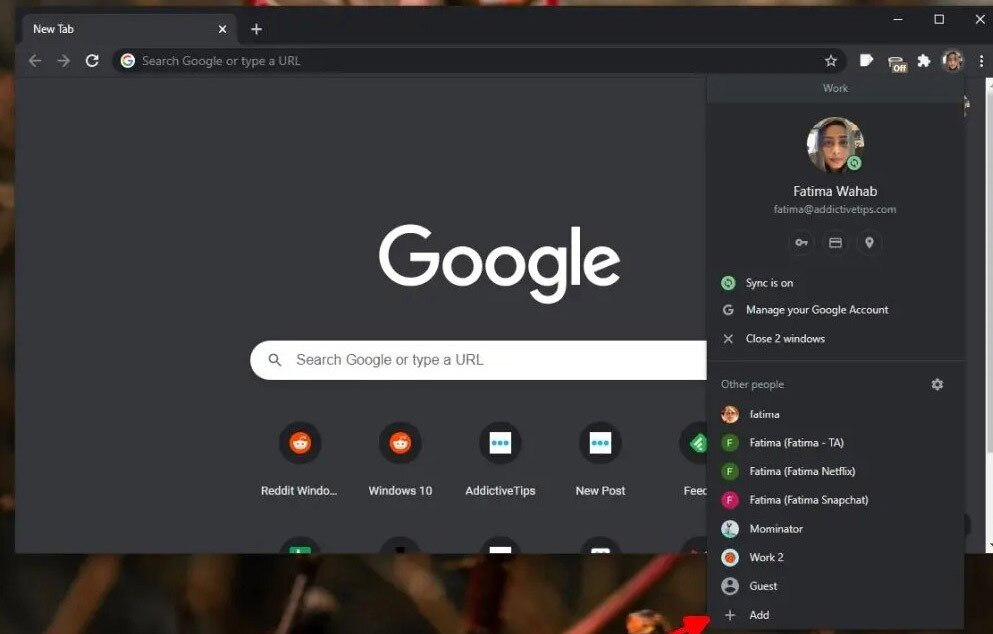
- Click your profile icon at the top.
- Select Add.
- Enter a name for your new profile.
- Sign in to your Google account to select the new profile.
- Your data should be synced to your new profile once you start using it.
- Delete your old profile if the issue persists, and then try again.
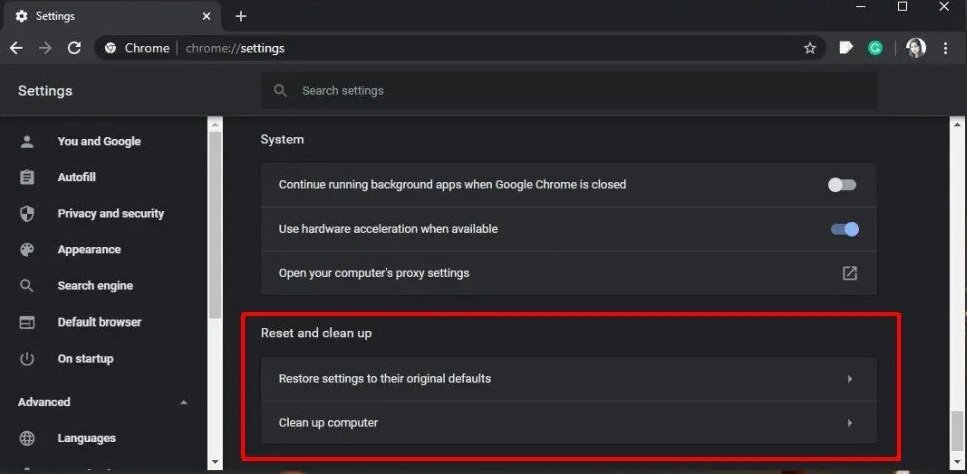
8. Reset Chrome
If the feature still doesn’t work to restore tabs, reset Chrome.
- Open Chrome.
- Click the More options button in the top right.
- Select Settings from the menu.
- Scroll down and click Advanced.
- Select Restore settings to their original defaults.
- Click Reset settings.
9. Clean install Chrome
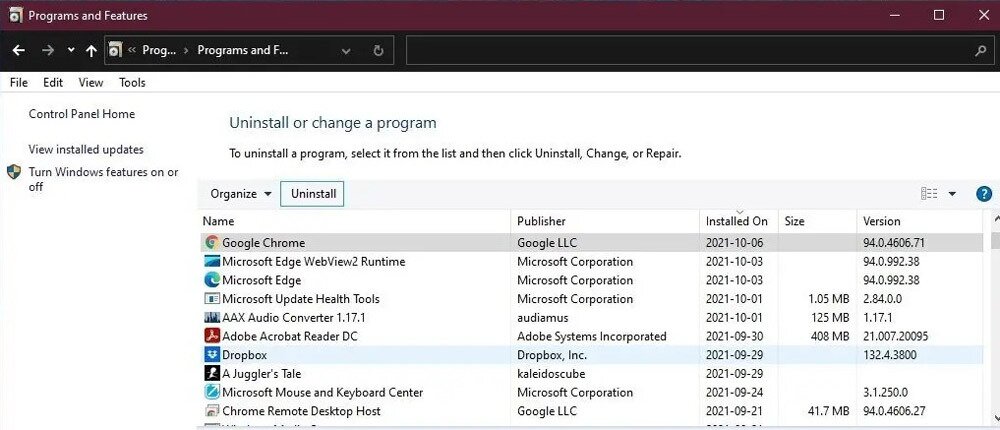
If none of the above troubleshooting tips have resolved the issue, you can try a clean install of Chrome. Because this process involves removing Chrome’s local data — including session files, bookmarks, cookies, and saved tabs — it is critical that you back everything up before you begin. Follow these steps carefully:
- Back up your data first. Turn on Chrome Sync by going to Settings → You and Google → Turn on Sync, or manually export your bookmarks via Bookmarks manager → Export bookmarks. Do not skip this step.
- Back up your User Data folder by copying it to a safe location on your computer or an external drive. The folder is located at:
— Windows:%LOCALAPPDATA%\Google\Chrome\User Data
— Mac:~/Library/Application Support/Google/Chrome - Close Chrome completely before proceeding.
- Open Control Panel, select Programs → Uninstall a program, then select Chrome and click Uninstall.
- Only after confirming your backup is complete, remove the leftover Chrome app data folder from the locations listed in Step 2. Be aware that deleting this folder permanently removes session files, bookmarks, cookies, and saved tabs for any data that was not synced or backed up — recovery will not be possible after this point.
- Download Chrome from google.com/chrome and install it fresh.
- Sign back in to your Google account to restore your synced bookmarks, history, and settings.
10. Check for Multiple Desktops
Using multiple virtual desktops can hide restored Chrome tabs. Before you start troubleshooting—especially after a crash or system restart—check all your virtual desktops. Some missing tabs or windows may simply be open on a different desktop.
In some cases, Chrome restores tabs on one virtual desktop but fails to restore them on another. If Chrome crashes unexpectedly, it may also lose tabs altogether. When that happens, closing additional desktops can actually help, even if it seems counterintuitive.
In that case (though it may seem counterintuitive), closing your additional tabs may be the best option. Here’s how to identify and close multiple desktops in Windows:
- Press the Windows key + Tab key to open Task View
- If there are multiple desktops open, you should see them. If you see multiple desktops, use the arrow keys or your mouse to switch between them. You can close a desktop by pressing the Delete key or clicking the red close button.
- If you have several desktops open, you can close them using the same process.
Note: Once a desktop is closed, any open windows or tabs from that desktop should move to Desktop 1, so you won’t need to hunt through multiple desktops to find them.
11. Look for “Create Shortcut” Conflicts
If you use the Create Shortcut feature for some apps or websites, it can interfere with Chrome Continue where you left off behavior. Shortcuts turn sites into app-like windows, and Google Chrome sometimes treats these differently from standard browser tabs.
As a result, apps or sites launched this way may not reopen when you use the Chrome Continue where you left off feature, meaning they won’t always be included when Chrome tries to restore tabs. In these cases, you’ll usually need to reopen the shortcuts manually.
A few things to keep in mind:
- If you’re not sure whether a site was opened as a shortcut, think about whether it launched in a separate window rather than among your regular chrome tabs.
- You can usually find missing shortcuts by searching your taskbar or Start menu.
- Going forward, bookmarking pages instead of creating shortcuts can reduce the risk of losing access when Chrome fails to restore an app or page.
Some users also report seeing a single blank tab instead of their previous session. If that happens, try opening the three vertical dots, selecting History, and choosing Restore your tabs or window from there.
You can also delete the shortcut entirely and save the site another way to avoid conflicts. That said, you may never run into this issue at all. Newer versions of Chrome tend to handle shortcuts more reliably, so if this isn’t affecting you, it may be better to focus on a different troubleshooting step for missing tabs.
12. Multiple Chrome Windows Issues
The Chrome Continue where you left off feature can sometimes misbehave when you use multiple windows. Some common issues you may run into under these circumstances include:
- One window’s tabs or state may replace another window’s
- The wrong window may be restored or some may be missing
- Some windows or tabs may be duplicated
- Chrome may be sluggish, crash, or freeze
- Incognito windows may not be restored
- Window sizes and grouping may not be restored correctly
To prevent these mishaps, try using tab groups, reduce how many windows you use (instead of using more Chrome tabs), and manually close Chrome from time to time, so it’s less likely to crash.
How to Enable Chrome Continue Where You Left Off on Mac
If you’re a Mac user who wants to enable the Chrome Continue where you left off feature to restore tabs, the steps are straightforward and work the same way across modern macOS versions. Here’s what to do:
- Open the Google Chrome browser on your Mac.
- Click the three vertical dots and select Settings.
- On the left side of the screen, select On startup for various startup options.
- Choose Continue where you left off to have this feature constantly enabled, letting you restore tabs easily.
Never Lose Tabs Again: How to Reopen Closed Tabs
Dealing with bugs and glitches can be extremely frustrating when time is short. If Google Chrome isn’t able to automatically restore your tabs, and you just want a quick fix, there are several ways to do this yourself:
1. Using a Keyboard Shortcut to Restore Tabs
One option when you find that Chrome Continue where you left off isn’t working, is to use keyboard shortcuts. These are especially useful if there was an unexpected crash, or you simply closed a tab accidentally. Here’s the keyboard combo you should use:
For Windows:
- Ctrl + Shift + T
For Mac:
- Cmd + Shift + T
This shortcut will reopen the most recently closed tab. You can press it repeatedly to reopen multiple tabs in reverse order — each press brings back the next most recently closed tab. This works even after a browser restart, as long as Chrome has a record of your session.
Note that this shortcut does not work for Incognito tabs, as Chrome does not save their history.
2. Reopen Closed Tabs Through Chrome’s History
Your most recently opened tabs are also accessible through Chrome’s History. It’s easy to access through the app’s menu:
- Open the Google Chrome menu by clicking the three vertical dots.
- Select History.
- The Recent Tabs section displays a list of your most recently opened tabs.
- Simply select the one you wish to reopen.
Another option is to open Chrome’s full history page directly. Type chrome://history into the address bar and press Enter. From there, you can browse your complete browsing history and reopen any page you need. Look for the Recently Closed section at the top of the History menu for quick access to tabs from your last session.
3. Restore an Entire Closed Window
If you accidentally closed an entire Chrome window rather than individual tabs, you can recover it through History. Click the three vertical dots, select History, and look for the closed window listed as a group of tabs. Clicking it will reopen the entire window with all its tabs at once. You can also use Ctrl+Shift+T (Windows) or Cmd+Shift+T (Mac) immediately after closing a window to bring it back in one step.
4. Restore Tabs from Other Synced Devices
If you have Chrome Sync enabled, you can access tabs that are open on your other devices — useful if you were browsing on your phone or another computer and want to continue on your current machine. Here’s how:
- Click the three vertical dots and select History.
- Look for the Tabs from other devices section, or select History again to open the full history page at chrome://history.
- Select the tab you want to open from any listed device.
Important limitation: Incognito tabs cannot be restored by any of the methods above. Chrome does not save Incognito browsing history, session data, or cookies, so once an Incognito window is closed, those tabs are gone permanently.