Force Quit Mac Apps: 5 Quick Ways to Close Frozen Apps
If you’ve ever encountered the endlessly spinning beach ball cursor, you know how frustrating a frozen app can be. Knowing how to mac force quit an unresponsive application is an essential skill — a mac force quit lets you close stuck apps immediately so you can get back to work. You’re in luck, though.
Here are 5 easy methods to force quit on Mac with steps for each one.

Quick Summary
The easiest way to perform a mac force quit is using the keyboard shortcut, Command + Option + Esc. If that doesn’t work, you can also force quit an app from the Dock (how to add the dock to touch bar on MacBook), Apple menu, Terminal, or Activity Monitor.
Try a Normal Quit First
Force quit should be a last resort. Because it closes an app immediately, any unsaved work will be lost. Before reaching for a force quit method, try a normal quit first — it gives the app a chance to shut down cleanly and save your data.
There are two easy ways to quit an app normally:
- With the app active, press Command + Q on your keyboard
- Click the app’s name in the menu bar at the top of the screen, then choose Quit
If the app seems sluggish but not completely frozen — for example, it may just be processing a large file or loading a heavy task — give it 30 to 60 seconds before assuming it’s stuck. Only move on to mac force quit if the app remains unresponsive after that wait.
1. Mac Force Quit Apps Using The Keyboard Shortcut
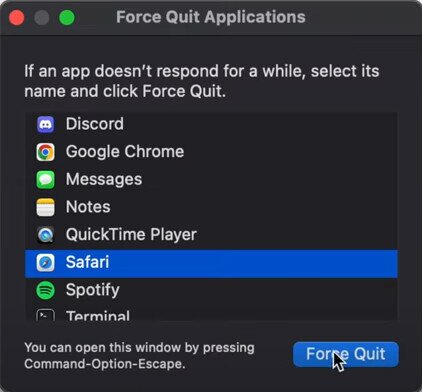
One of the simplest methods to mac force quit an app is using your keyboard. Here’s how:
- Press and hold the Command, Option, and Escape keys at the same time: Command + Option + Esc
- A Force Quit applications window will appear
- Select the app that’s being troublesome
- Click the Force Quit box

2. Mac Force Quit Using The Dock
The Mac Dock is home to common apps and will automatically be located at the bottom of your screen, but it can also be moved to the left or right side. Mac’s Dock menu is a useful place to access frequently used applications and is also a great way to force quit on Mac. Here’s how:
- Go to the Dock and find the app that’s frozen
![Mac Dock]()
- Hold Option, then right-click or Control-click the app icon in the Dock. When Quit changes to Force Quit, click it.
- The app menu will give you the option to Force Quit



3. Force Quit From The Apple Menu
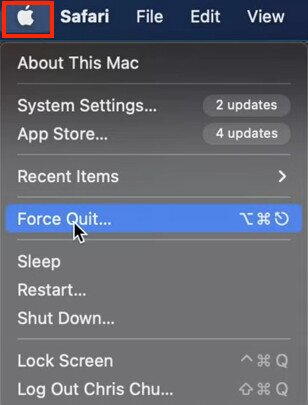
Another easy way to force quit on Mac is through the Apple menu. Here are the steps:
- Select the Apple logo on the upper left corner of your screen
- A pop-up menu will appear. Choose Force Quit

- The same Force Quit Applications menu from before will appear that was in the keyboard shortcut instructions
- Select the app you want to quit
- Click Force Quit
4. Force Quit With The Terminal
This tactic is more involved than the other mac force quit methods we’ve covered so far. Using Terminal will let you force quit through the command line. Here’s what to do:
- Select the Launchpad icon on the Dock
- Type Terminal in the search box

- Click Terminal
- The command line window will appear
- Type: killall [name of the application] A real-life example of this would be something like killall Safari
- Push the Return key and your app will shut down

Things to note:
- When you type the app name, use a capital letter
- If the app is two or more words, put the app name in quotation marks
- Be aware that you may lose anything that isn’t saved
5. How to Mac Force Quit Using Activity Monitor
Mac’s Activity Monitor is the Mac equivalent of Windows Task Manager — it shows every process running on your system, not just the apps visible in your Dock. This makes it one of the most powerful mac force quit methods available, because it can find and stop runaway background processes that won’t show up in the Force Quit window or the Dock at all.
Activity Monitor is useful when the app or process doesn’t appear in the Force Quit window or Dock, or when you need to identify a resource-heavy background process. Here are the steps:
- The fastest way to open Activity Monitor is via Spotlight: press Command + Space, type Activity Monitor, then press Return. You can also use Launchpad to find it.
- The Activity Monitor will open, showing all the current processes running on your Mac
- If you’re not sure which process is causing the problem, click the CPU or Memory tab at the top and sort by usage (highest first) to identify any apps or background processes consuming too many resources
- In the list, select the app or process you want to force quit. Note: Unresponsive apps will show (Not Responding) next to them. This method works even for processes that don’t appear in the Dock or the Force Quit window.
- Once the process is selected, click the circled X symbol (the Stop button) at the top of the Activity Monitor window

- A pop-up will appear asking Are you sure you want to quit this process? Try Quit first — it gives the process a chance to close cleanly. If it doesn’t respond, repeat the steps and choose Force Quit.

If Mac Force Quit Doesn’t Work or Your Entire Mac Is Frozen
Sometimes a single app isn’t the problem — the whole Mac feels locked up and none of the mac force quit methods above are responding. Use the decision tree below to figure out the right next step, then follow the post-restart checks to help prevent it from happening again.
If only one app is frozen: Use Force Quit (Command + Option + Esc) or Activity Monitor as described in the sections above.
If Finder is the frozen app: You can’t quit Finder the normal way, but you can restart it. Open the Force Quit window with Command + Option + Esc, select Finder from the list, and click Relaunch instead of Force Quit.
If the whole Mac is unresponsive but the keyboard still works: Try pressing Command + Option + Esc again to bring up the Force Quit window. If you still have partial keyboard control, you can also attempt a keyboard-initiated restart by pressing Control + Command + Power button (or Control + Command + Touch ID on MacBooks that support it). This triggers a restart without a hard shutdown and is gentler on your system than holding the power button.
If the system is completely frozen and nothing responds: Press and hold the power button for up to 10 seconds until the Mac shuts down entirely. Then press the power button again to turn it back on. On MacBooks with Touch ID, the Touch ID button is the power button — press and hold that.
After your Mac restarts — follow-up checks:
A forced shutdown will close everything immediately without saving. Once your Mac is back up, work through these steps to recover and reduce the chance of a repeat:
- Reopen any apps that were running and look for auto-recovered files — many apps like Pages, Word, and Keynote will offer to restore unsaved work automatically
- Install any pending macOS updates (Apple menu > System Settings > General > Software Update) and update the app that froze via the App Store or the developer’s website
- Open Disk Utility (find it via Spotlight with Command + Space), select your startup disk, and run First Aid to check for and repair disk errors
- Disconnect any peripherals (USB hubs, external drives, dongles) that were connected when the freeze occurred, then reconnect them one at a time to identify a problem device
- If freezes keep happening, check Login Items (Apple menu > System Settings > General > Login Items) and remove any background apps you don’t need starting automatically
Why Apps Freeze on Mac and How to Prevent It
Knowing how to mac force quit an app gets you out of trouble fast, but understanding why freezes happen in the first place can help you avoid them entirely. Here are the most common causes:
- Low available RAM: When too many apps are open at once, your Mac runs out of working memory and apps stall waiting for resources to free up
- Low disk space: macOS uses your startup disk as virtual memory. If free space drops below about 10–15 GB, the whole system can slow down or freeze
- Outdated macOS or app versions: Bugs that cause crashes and freezes are often fixed in updates — running old software leaves those vulnerabilities in place
- Too many browser tabs or extensions: Each open tab consumes RAM, and poorly coded browser extensions can consume CPU continuously in the background
- Too many apps open at once: Every open app occupies memory, even when it’s sitting idle in the background
- Corrupted app data: A damaged preference file or corrupted app installation can cause an app to freeze every time it performs a specific action
- Background processes using excessive CPU: Processes like indexing, cloud sync, or misbehaving third-party software can consume CPU silently, leaving other apps starved for processing power
Prevention checklist:
- Keep macOS and your apps up to date — check for updates regularly in System Settings and the App Store
- Free up storage space — aim to keep at least 10–15 GB of free space on your startup disk; uninstall apps you no longer use and clear out large files
- Reduce Login Items — go to Apple menu > System Settings > General > Login Items and remove apps that don’t need to launch at startup
- Trim browser extensions — remove any extensions you don’t actively use, and avoid keeping more than 10–15 tabs open at once
- Restart your Mac occasionally — a regular restart clears RAM, flushes caches, and applies pending updates; once or twice a week is a good habit if you rarely shut down
- Use Activity Monitor proactively — open it periodically and check the CPU and Memory tabs to spot any processes that are consistently consuming too many resources before they cause a freeze
Frequently Asked Questions
What is a force quit on Mac?
When an app is being unresponsive, it can cause things to freeze or stop working. Sometimes quitting an app the usual way is not possible with such disruptions. A mac force quit makes the app close immediately, giving you a fresh start. Just be aware that your data won’t be saved if you force quit an app.
Can you force quit on Mac when the computer is frozen?
Usually, but not always. If your Mac is frozen, try using the keyboard shortcut Command + Option + Esc
From there, choose the app you want to close from the Force Quit window. If your Mac won’t allow you any cursor movement or interactions, you may have to hold the power button until it turns off, then turn it back on and see if that fixes things.
What can you do with an unresponsive Mac?
You can try any of the mac force quit methods above, and hope that it’s just an application that is the culprit. Other troubleshooting steps include:
- Rebooting your computer
- Checking for Viruses
- Unplug all accessories (like USBs, printers, etc) and reboot
- Make sure power sources are working
- Uninstall any apps that are causing repeated problems
- Free up disc space by uninstalling apps that you don’t use
- Do a software update in case of any bugs or glitches that may need fixing
- Take your Mac in to be serviced